
 Mason
Mason 



🎥 SFM Compile – Bring Your Models & Animations to Life
We transform your raw 3D files into fully functional, error-free assets for Source Filmmaker.
Stop struggling with compiling — let us handle the technical side so you can focus on creating.
🚀 Fast. Reliable. Professional.
At SFM Compile, we believe that creativity should never be limited by technical barriers. Founded by passionate animators and 3D artists, our mission is simple — to help creators turn raw models, textures, and animations into fully functional, error-free assets for Source Filmmaker (SFM).
We know the frustration of dealing with endless compile errors, missing textures, and broken rigs. That’s why we built SFM Compile as a professional service — to take the stress out of the process and give creators the freedom to focus on what they love most: bringing their ideas to life on screen.
From independent animators and hobbyists to professional filmmakers and game modders, we’ve supported creators of all skill levels. Every project we take on is handled with precision, care, and a commitment to delivering fast, reliable, and professional results.
When you work with us, you’re not just outsourcing a task — you’re gaining a partner who understands both the artistic side of storytelling and the technical demands of Source Filmmaker.
👉 With SFM Compile, you create. We compile. Together, we bring your vision to life.
Nothing derails creativity faster than running into broken textures, missing models, or endless error logs. At SFM Compile, we remove these frustrations by handling the entire compiling process for you. Every model, texture, and animation is thoroughly optimized to ensure smooth, seamless importing into Source Filmmaker. The result? Assets that work exactly as intended — with no guesswork, no wasted effort, and no unpleasant surprises when you’re ready to animate.
We know your time is valuable. Instead of losing hours — or even days — trying to troubleshoot complex compile issues, let us take care of it for you. Our experts streamline the technical side so you can spend your time where it matters most: bringing your vision to life through storytelling and animation. With SFM Compile as your partner, you’ll experience faster workflows, less downtime, and more energy to put into the creative side of your projects.
Whether you’re compiling a simple prop or a highly detailed character rig, we deliver professional results you can trust. Every project we handle is carefully tested to guarantee quality, functionality, and consistency inside SFM. We’ve supported animators, 3D artists, filmmakers, and modders worldwide, helping them turn raw files into polished, production-ready assets. No matter the scale or complexity of your project, SFM Compile ensures you receive assets that perform flawlessly from start to finish.

At SFM Compile, we provide a full range of professional compilation services designed to make your Source Filmmaker projects run smoothly from start to finish. Whether you need a simple model compiled or a complete pipeline solution, we’ve got you covered.

We expertly convert your raw files — including SMD, DMX, and other formats — into fully optimized, SFM-ready assets. Every model is checked for accuracy, stability, and performance, ensuring your props, characters, and environments import seamlessly without errors.
From subtle facial expressions to complex character rigs, we make sure your animations behave exactly as intended inside SFM. Our rigging support guarantees smooth movements, natural deformations, and flawless playback, giving your characters the life and realism they deserve.
Broken textures and mismatched materials can ruin even the best 3D model. We fix, compile, and optimize textures and shaders to achieve high-quality, accurate rendering inside SFM. This ensures your scenes look sharp, detailed, and production-ready.
Every project is unique — and so are our solutions. Whether you’re working on a short film, machinima, mod, or a professional animation project, we adapt to your workflow and requirements. Our team provides tailored compiling solutions that fit your creative goals and technical needs.
👉 No matter the size or complexity of your project, SFM Compile delivers fast, reliable, and professional results you can trust.
In Source Filmmaker, compilation is the bridge between creativity and functionality. Without proper compiling, your assets won’t load or function correctly. At SFM Compile, we ensure your models, animations, and textures translate perfectly into SFM’s engine, so your creative vision never gets lost in technical issues.
🎬 Animators – Bring custom characters and props to life.
🎨 3D Artists – Showcase your models in stunning cinematic scenes.
🎮 Modders – Create game-inspired content and machinima.
📽️ Filmmakers – Produce professional-quality short films in SFM.
- Years of hands-on SFM compiling expertise
- Fast turnaround times
- Personalized support for every project
- Affordable packages for hobbyists and professionals alike



If you’re a Source Filmmaker creator, SFM Compile is the game-changer you didn’t know you needed. Instead of wasting hours fixing broken imports or struggling with file errors, this tool does the heavy lifting for you. From character models to animations, SFM Compile makes sure your assets are properly structured, optimized, and ready to drop straight into SFM. It’s like having a technical safety net that catches problems before they ruin your project.
What sets SFM Compile apart is how it balances creativity with technical precision. Whether you’re working in Blender, Maya, or any other 3D software, this tool ensures your work stays fully compatible with the Source engine. That means less frustration, cleaner results, and more time actually bringing your ideas to life.
| Feature | What It Does |
| ✅ Model Optimization | Reduces file size and streamlines geometry for smoother performance. |
| 🔄 Compatibility Checks | Detects potential issues with Source engine versions and SFM limitations. |
| 📁 File Formatting | Converts raw assets (e.g., .SMD, .DMX) into usable formats for SFM. |
| 🧩 Rig & Bone Validation | Ensures skeletons and bone structures match SFM requirements. |
| 📜 QC File Integration | Supports QC scripts to automate compilation with custom parameters. |
These features help creators stay focused on storytelling and animation without getting lost in technical bottlenecks.

When you’re building custom assets for Source Filmmaker, understanding the file types SFM Compile works with is crucial. Each file format plays a specific role in the asset pipeline—from defining the model’s structure to controlling how animations are applied. SFM Compile is built to handle several key file types commonly used in the Source engine ecosystem, ensuring your content imports cleanly and functions properly in SFM.
Here are the main file types supported by SFM Compile:
- .QC (Quake C Script): This is the control script that tells the compiler what to do—how to handle the model, which textures to use, what animations to apply, and more. Think of it as the blueprint for your asset.
- .SMD (Studiomdl Data): Used primarily for mesh, skeleton, and animation data. It’s a simple, widely-supported format that most 3D tools can export.
- .DMX (Data Model Exchange): A more modern, flexible format used for advanced rigs and facial animations. Preferred for complex character setups.
Each format serves a different purpose, and SFM Compile brings them together to generate fully compatible, ready-to-use assets. Understanding these file types helps you avoid import errors and gives you greater control over the final result.

Getting started with SFM Compile is straightforward, even if you’re new to modding or animation tools. The key is to set it up correctly so you can focus on creating and testing your assets without running into technical issues. While some users prefer alternative tools, SFM Compile offers a focused and efficient solution tailored specifically for Source Filmmaker workflows.
Here’s a simple step-by-step guide to help you install and set up SFM Compile on your system:
- Download SFM Compile
- Visit a trusted Source modding community (such as [GameBanana] or [Steam forums]) where SFM Compile is shared.
- Download the latest version of the tool (usually provided as a ZIP or EXE file).
- Visit a trusted Source modding community (such as [GameBanana] or [Steam forums]) where SFM Compile is shared.
- Extract the Files
- If it’s a ZIP archive, extract it to a dedicated folder (e.g., C:\Tools\SFMCompile).
- If it’s a ZIP archive, extract it to a dedicated folder (e.g., C:\Tools\SFMCompile).
- Install Required Dependencies
- Make sure you have the Source SDK Base installed through Steam.
- Install Microsoft .NET Framework (usually required to run the tool).
- Make sure you have the Source SDK Base installed through Steam.
- Launch the Application
- Double-click the SFMCompile.exe file (or similar executable) to run the tool.
- Double-click the SFMCompile.exe file (or similar executable) to run the tool.
- Configure Default Paths
- Set the paths to your SFM content folder and model output directory.
- Optional: Link it to your preferred text editor for QC script editing.
- Set the paths to your SFM content folder and model output directory.
Once installed, you’re ready to start compiling your models and animations. Keeping your workspace organized will help you work faster and avoid errors later on.
If you’re new to Source Filmmaker and custom asset creation, using SFM Compile for the first time might feel a bit intimidating—but it doesn’t have to be. Once you understand the basic steps, compiling a model or animation becomes a smooth part of your creative workflow. This beginner-friendly guide will walk you through compiling a simple 3D model for use in SFM.
To get started, make sure you have your model file (usually in .SMD or .DMX format) and a properly written .QC script ready. The QC file acts like an instruction sheet, telling SFM Compile how to process your asset.
- Open SFM Compile.
Launch the application and make sure your directories are set correctly. - Load Your QC File.
Click on the “Browse” or “Load QC” option to locate your .QC script. - Run the Compilation.
Press the “Compile” button. SFM Compile will process your model based on the QC file’s instructions. - Check the Output.
Your compiled model files (usually .MDL, .VTX, .PHY, etc.) will be saved in your specified output folder, ready for use in Source Filmmaker.
That’s it! Once compiled, you can import your asset into SFM and begin animating. It’s a simple process once you’ve done it a couple of times, and it opens the door to endless custom content.
At the heart of every model compilation process in SFM lies the .QC file—a simple but powerful script that tells the compiler exactly how to handle your model. Think of it as a set of instructions that defines how your 3D asset is assembled, where it’s placed, how it behaves, and even which animations or textures it should use. Without a properly written QC file, SFM Compile wouldn’t know how to process your model.
The QC script includes commands that control essential elements like the model name, origin point, body groups, hitboxes, materials, and animation sequences. Even if your model is perfectly built, a single error in your QC file can cause the entire compilation to fail or the asset to load incorrectly in SFM.
qc
$modelname “myfolder/mymodel.mdl”
$body “Body” “mymodel.smd”
$cdmaterials “models/mymodel/”
$sequence “idle” “idle.smd” loop
$collisionmodel “mymodel_physics.smd” {
$mass 10
$inertia 1
$damping 0.2
}
Each line serves a purpose—defining geometry, linking animations, or setting up physics. Learning to write and tweak QC files gives you far greater control over your custom content, making your workflow faster and more reliable.

Running into errors during compilation can be frustrating, especially when you’re not sure what went wrong. Fortunately, many SFM Compile issues are common and easily fixable once you understand what they mean. These errors usually stem from missing files, incorrect QC commands, or formatting issues in your model or animation files.
For example, one frequent error is “ERROR: bad command $sequence”, which usually means there’s a typo in your QC script or the referenced .SMD file is missing. Another is “Can’t load .SMD file”, which often points to incorrect file paths or missing geometry files. You might also encounter “Too many bones” errors, typically when exporting complex rigs from Blender or Maya without simplifying them for the Source engine.
| Error Message | Likely Cause | How to Fix |
| bad command $sequence | Incorrect syntax or missing file | Double-check file name and syntax in QC file |
| Can’t load .SMD file | File missing or wrong path | Ensure file exists and path is correct |
| Too many bones in mesh | Model rig too complex | Reduce bones or split mesh into multiple parts |
| Unknown command “$cdmaterials” | Typo or misplaced command | Correct spelling and order in QC file |
Taking a moment to read the full error message and reviewing your file paths and script formatting will usually point you to the solution. Keep backups of your working files and test small changes incrementally to avoid redoing large chunks of work.
Bringing your own models into Source Filmmaker is one of the most rewarding parts of the animation process. Whether you’ve created a character in Blender or downloaded an asset from a 3D library, SFM Compile helps convert that model into a format SFM can use. The key is to prepare your files correctly and follow a clean workflow that avoids errors during compilation and import.
Start by ensuring your model is exported in the correct format—typically .SMD or .DMX—and that all parts, such as meshes, skeletons, and physics, are included. Then, write a simple .QC script that defines the structure and properties of your model. Once everything is ready, load the QC file into SFM Compile and run the compiler. If successful, you’ll get a set of files like .MDL, .VTX, and .PHY that SFM recognizes.
After compiling, place the output files into your SFM custom content directory, usually located in SourceFilmmaker/game/usermod/models. Launch SFM, use the model browser, and you should see your custom asset ready for animation. With a bit of practice, this process becomes a seamless part of your creative workflow.
When it comes to compiling models for Source Filmmaker, two of the most commonly used tools are SFM Compile and Crowbar. While both serve a similar purpose—converting raw 3D assets into usable SFM formats—they offer different experiences depending on your needs and workflow.
SFM Compile is tailored specifically for Source Filmmaker users. It’s lightweight, straightforward, and focuses entirely on compiling assets for SFM projects. For creators who want a simple, no-frills tool that gets the job done with minimal setup, SFM Compile is often the preferred choice. It’s great for beginners or animators who just want their custom models in SFM as quickly as possible.
Crowbar, on the other hand, is a more comprehensive tool. It supports both decompiling and compiling, has more configuration options, and can handle assets for multiple Source engine games, not just SFM. This makes it a favorite among modders and advanced users who need flexibility and deeper control.
Ultimately, if you’re focused solely on SFM projects and want an easy, clean workflow, SFM Compile is ideal. But if you’re juggling multiple Source games or want broader tool support, Crowbar might be the better fit.
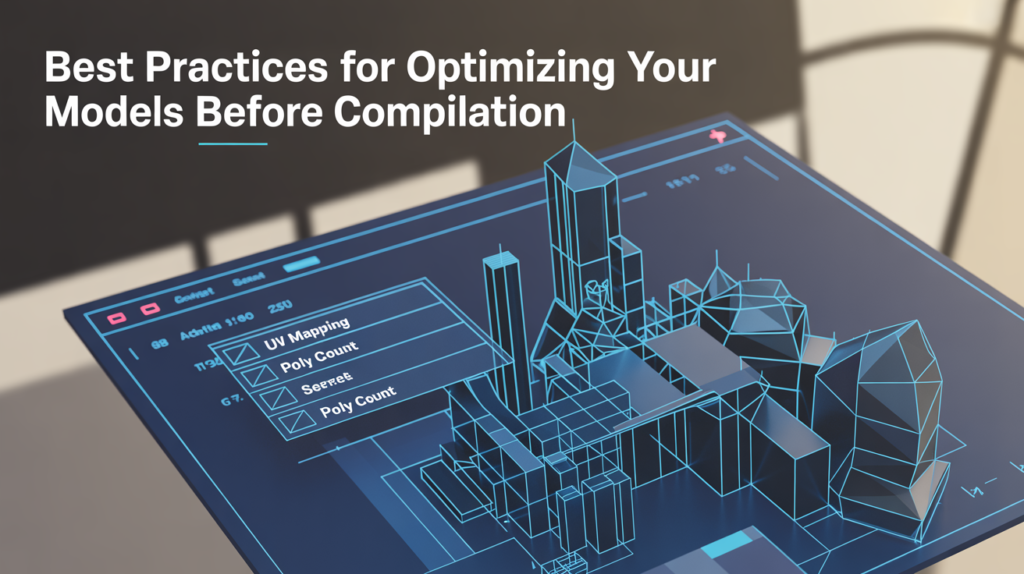
Before you even open SFM Compile, taking the time to optimize your model can save you a lot of headaches later. Clean, efficient models not only compile faster but also run more smoothly in Source Filmmaker, especially in complex scenes with multiple assets. One of the most important steps is reducing unnecessary geometry—remove any hidden or unused faces, simplify meshes where possible, and make sure your model isn’t carrying extra polygons that don’t contribute to visual quality.
It’s also critical to check your model’s scale and pivot points. Models that are too large or not centered properly can cause positioning issues once loaded into SFM. Keep your transforms frozen and apply all scale and rotation data before export. If your model has bones or a rig, ensure that the hierarchy is clean and that bone weights are properly assigned—this helps avoid animation bugs and physics glitches.
Lastly, organize your textures and materials. Use power-of-two texture sizes (like 512×512 or 1024×1024) to improve performance, and double-check that your material paths in the QC script point to the correct directories. These small steps make a big difference in how well your model performs in SFM.
Creating and compiling animations for Source Filmmaker adds a whole new layer of depth to your projects. If you’re working with facial expressions, detailed character movement, or complex rigs, using DMX (Data Model Exchange) files is highly recommended. DMX files offer greater precision and flexibility compared to older formats like SMD, especially for facial controls and layered animations.
To begin, you’ll need to export your animation from your 3D software (such as Blender or Maya) in the DMX format, ensuring that your rig is clean and matches the model you intend to animate. Next, reference the DMX file in your .QC script using a $sequence command. This tells the compiler how to treat the animation and where it should be applied in the model’s sequence list.
Once compiled with SFM Compile, the animation becomes part of the model’s usable sequences in SFM. You can access it directly from the animation set editor and use it just like native animations. Preparing DMX files correctly ensures smooth playback, fewer glitches, and better compatibility with the Source engine’s advanced animation features. This step is crucial for anyone serious about custom animated content in SFM.
Once you’re comfortable with basic compilation, diving into advanced QC script options can give you much more control over how your model behaves in Source Filmmaker. These commands go beyond just compiling a model—they define how it interacts with the environment, responds to animations, and even how efficiently it performs at different distances.
One powerful command is $attachment, which allows you to create custom attachment points on your model—ideal for weapons, props, or particle effects. You can place these anywhere on the skeleton, making them perfect for scenes that require props to be dynamically attached to characters.
Another important area is Level of Detail (LOD) settings. Using $lod commands, you can define multiple versions of your model with decreasing complexity. This helps SFM manage resources better, especially in scenes with lots of models, by switching to simpler versions when objects are far from the camera.
Advanced commands also allow for model scaling, hitbox customization, animation events, and more. By learning these options, you can turn a static model into a dynamic, film-ready asset tailored to your creative needs. These additions may take a bit more time, but they dramatically improve both performance and flexibility in your projects.

After compiling your model using SFM Compile, the next step is to preview it inside Source Filmmaker to ensure everything looks and functions as expected. Testing in the SFM viewport helps you spot issues like missing textures, rigging errors, or incorrect animations before using the model in a full project. It’s an essential part of the asset creation workflow and helps avoid surprises later on.
Here’s how to load and preview your compiled model in Source Filmmaker:
- Place Compiled Files in the Right Folder
Copy your compiled model files (e.g., .mdl, .vtx, .phy) into:
Steam/steamapps/common/SourceFilmmaker/game/usermod/models/yourfolder/ - Launch Source Filmmaker
Open SFM and load any existing project or start a new one. - Open the Animation Set Editor
Right-click in the viewport and select Create Animation Set for New Model. - Browse for Your Model
Use the model browser to navigate to the directory where you saved your model. It should appear under the path you used in your .QC script. - Add to Scene and Inspect
Load the model, rotate and scale it, check bones and rigging, and play any compiled animations to confirm everything works correctly.
While SFM Compile handles the heavy lifting of turning your models into usable assets, pairing it with Source SDK tools can significantly improve your workflow and help catch issues before they reach SFM. Tools like Half-Life Model Viewer (HLMV) and Source Model Viewer are especially helpful for inspecting compiled models in detail without needing to load them directly into a project.
After compiling a model, you can open it in HLMV to check for problems like misaligned bones, incorrect texture paths, or broken animations. This tool allows you to preview sequences, attachments, hitboxes, and material settings—all in a lightweight environment that’s faster to load than Source Filmmaker itself.
Using these tools alongside SFM Compile also helps speed up iteration. You can make a small adjustment in your QC file, recompile, and quickly reload the model in HLMV to test the change—no need to open an entire SFM project. For creators who value efficiency and precision, integrating SDK tools into your workflow is a smart move that can prevent small issues from becoming big problems later in production.
Rigging issues are among the most frustrating problems modelers face after compilation. Bones that don’t move correctly, twisted limbs, or missing attachments can quickly break a scene. These problems usually stem from mismatched bone names, incorrect weights, or rig hierarchies that weren’t properly cleaned before export. Once your model is compiled, spotting these errors early is key to fixing them without redoing large parts of the project.
After loading your model into Source Filmmaker or a model viewer like HLMV, check that all bones are present and functioning as expected. If you notice parts of the model not following the skeleton—or deforming in strange ways—it’s likely a weight painting or parenting issue. Go back to your 3D software and inspect the bone influences, making sure each vertex is correctly assigned and normalized.
Also, make sure that the bone names in your animation files exactly match those in your model. Even a small typo can cause animation playback to fail. Consistency between export, QC script, and the rig structure is essential. By carefully reviewing your rig before and after compilation, you can avoid time-consuming backtracking and ensure your models animate smoothly in SFM.
Exporting models and animations from Blender or Maya to use with SFM Compile requires careful preparation to avoid errors during the compilation process. While both software tools support the creation of complex rigs and animations, they must be exported in a way that’s compatible with the Source engine. Understanding the correct workflow ensures your assets make a smooth transition into Source Filmmaker.
In Blender, you’ll typically use the SMD/DMX exporter plugin. Before exporting, apply all transforms (rotation, scale, and location), clean up unused bones, and make sure your model uses a single armature. For animations, only key the bones you want animated, and export using consistent frame rates. Export both the static mesh and animation files separately, and double-check that all bone names match.
In Maya, the process is similar. You’ll need to use Valve’s official Source Tools plugin to export to SMD or DMX formats. Always freeze transformations and delete history before export. Grouping geometry and ensuring clean hierarchy structures will help prevent animation errors or broken rigs later on.
Once exported correctly, these files can be compiled with your QC script using SFM Compile—ready to use in your next animation project.

When working on larger projects or asset packs, compiling models one by one can quickly become tedious. That’s where batch compiling comes in—a powerful way to speed up your workflow by processing multiple models at once using scripts or batch commands. It not only saves time but also reduces human error when dealing with many similar files.
To set up batch compiling, you can create a simple .bat file (Windows Batch Script) that automates the compilation process for each QC file in a folder. The script tells SFM Compile or the Source compiler to loop through files and compile them without manual input. This is especially useful if you’re making small edits to several models and need to recompile everything quickly.
Before running a batch script, make sure all your QC files are correctly written and located in a clean directory. Also, double-check that your paths and model dependencies (like textures and animations) are consistent. A single incorrect path can halt the entire process. Once everything is in place, batch compiling becomes an efficient way to manage updates and handle large-scale asset creation in SFM.
At SFM Compile, nothing matters more than the success of our clients. From animators and 3D artists to filmmakers and modders, creators around the world trust us to handle the technical side of compiling so they can focus on what they do best — creating. Here’s what some of them have to say about working with us:
Don’t let technical roadblocks hold back your creativity. With SFM Compile, you get a partner who handles the complicated backend — so you can focus on creating breathtaking animations.
👉 Contact us today to get started with your first compilation.
👉 Or request a free quote for your project now.